Showing posts with label Azure Pass. Show all posts

Monday, 19 August 2019

Using Azure Devops Deploy Webapi in Azure App Service

Here, in this article, we will see how to deploy Azure WebApi using Azure DevOps Pipeline, refer earlier articles for creating an Azure App Service for WebApi Application.

Lets create a new azure pipeline with classic editor and then choose the repository of the WebApi solution and then continue to select Azure WebApp for Asp.Net template as shown below, this would automatically add relevant tasks that are required for building the application.

As we don't have any test project,we have removed the unnecessary task, refer below build pipeline configuration.

Refer below screen shot for CD Pipeline configuration, easiest way to create release pipeline using the Azure Web App Deployment template.

Here, we have the authenticate to Azure Portal using the appropriate subscription and then configure the relevant resource that has to be deployed using the task.
Let's trigger the build and release pipeline for the AzureWebApi, deployment was successful and the application was deployed to the Azure App Service.


Friday, 16 November 2018

Migrating BizTalk Transformation To Azure using Azure Function as an API

In this article, I would brief about Migrating BizTalk Transformation As-Is to Azure Function(API) and this can be invoked from Logic App. Thus the transformation can be execute across different resource group, region and integration account.

Using Azure SDK, I have create a simple HTTP Trigger function. This has two projects, TrasformationHelper(TransformAPI) and AzureFunctionHelper.

In TransformAPI, we extract the request body and map name from the query string and invoke utility helper for the transformation.
In AzureFunctionHelper, I have embedded the XSLT and Extension Objects as resource files and based on the MapName, we would dynamically execute the transformation and render the transformed result as HTTP Response to client.
Here is the XSLT for one of the transformation and this invoke external assembly methods, as shown. External assembly method does DB Lookup. Lets add the reference of External Assembly to Azure Function Project.
Lets configure hybrid connection in Azure Function. select Networking and click on configure your hybrid connection endpoints. Click on Add hybrid Connection, 
Create a new or bind to existing Hybrid Connection. Refer my earlier article for configuring azure hybrid connection to access on-prem sql server.
Lets deploy and test the Azure function API. This can be invoked from Logic App to achieve dynamic transformation.
Note:- External Assembly would be package as part of Azure Function Package. This allows us to completely re-use BizTalk Transformation as-is.

Sunday, 18 February 2018

Logic App | Integrating with Azure Function


In this article, I will integrate Azure Generic Webhook function with Logic App.

Lets create a generic webhook function and generate a code from json request as shown and use it the function.

This function validates the JSON input and renders response based on the unit provided.

Lets create Logic App and choose a blank template,as shown below.
 Bring in a HTTP Request,
 Using Sample JSON, we can generate the JSON schema and the configure the HTTP verb as post and provide the relative path
Once HTTP request is configured, we can add a new step and then choose an action and configure the Azure Function. Then pass in the HTTP body to function as shown.
Now, we can validate the response using condition and control the flow for true and false path.
Save the logic app and push message using PostMan tool and validate the behavior

Saturday, 17 February 2018

Build Pub-Sub Model Using Azure Functions | Integrate Azure Function


In this article, I would brief about integrating function with another function.

Lets create timer function, here we would add a simple class file, common.csx with property function and enumeration as shown.

This function would act as message publisher, this would publish messages to event-hub and subscriber function would receive and process the message from event-hub.

Lets add, output for the function from Integrate tab and choose Azure EventHubs and then configure the connection details.

Lets publish a messages to event-hub from the Run method, as shown. Every minute messages are published to event-hub.
Now, lets create a subscriber event-hub trigger function and configure the same event-hub details. Let's keep the function simple, as shown below.
Once both functions are up and running, we can see message being exchanged from publisher and subscriber functions.

Basics of Azure Function | App Service | PAAS


In this article, we will see how to accomplish a simple scheduler type of task in azure using Azure Function.

Lets create a Function App from Azure; New->Function App and then provide the function details and choose the Hosting Plan either a consumption plan or App Service Plan depending on the requirement.

From quick start, choose Timer and C sharp as the programming language.

Sample timer function code is generated. Under the function, we can see Integrate and Manage and Monitor tabs.

Integrate option can be used to define Input and Output type of function; thus this allows us to integrate with different azure services like event-hub, logic app, service bus and etc.
Monitor tab provides the log details of each executions, as shown above.

Lets create a console application, This can contain any business logic like generating a session variable or clean up or re-conciliation activity. For our purpose, lets keep it simple, our console which reads a value from config file.

Lets add log4net for logging traces inside console as shown.


Now, lets add another function under the Function App, then upload the log4net and console exe and finally lets invoke to exe using from the function Run method as shown below.
Function executes every minute based on CRON expression and thus log files are generated and can be seem in the function drive.
Logs of function can be seen in the log pane.

Wednesday, 14 February 2018

Azure PASS | App Service | WebAPI


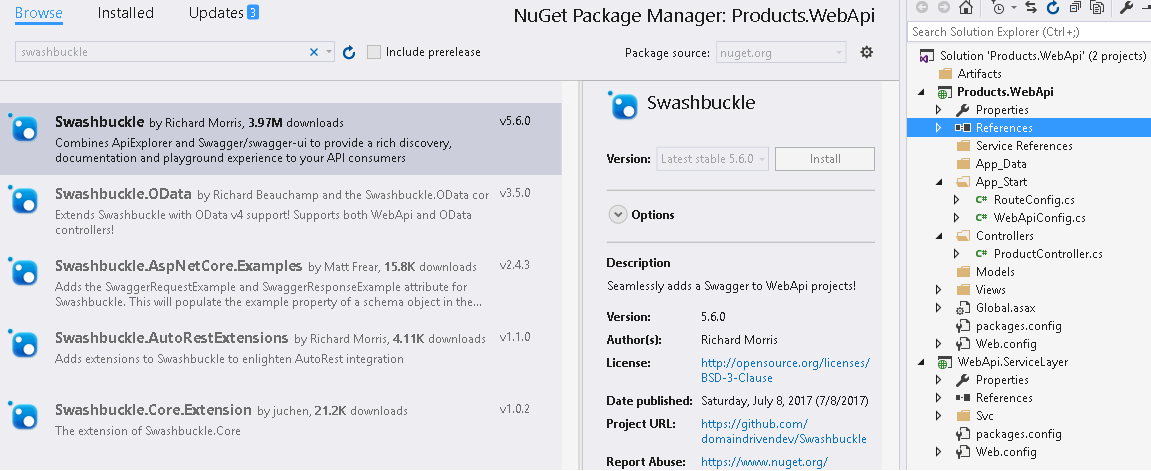
In this article, I would explain how to how Webapi in Azure App Service. Lets add Swagger reference to API project using Nuget Package.

Build and run the API project and nagivate to Swagger index, this page consolidates the API operation and even provides an user interface to test it out

Take the swagger doc and save it as a JSON file. Which can be used later for importing these API operation in Azure APIM.
Lets now, create a Azure App Service from Azure Portal as shown, provide the APP Name and create/use existing resource group.
Once App Service is created, lets create a virtual directory for ProductAPI; under Application Setting. 
Now get the publish profile and modify according to virtual directory and using this publish profile, we would deploy our code base to Azure  App service.
Once the code is deployed successfully we access the api operation from Azure App Service.


Lets test and verify the API's